
Index
- What Type of Assets Can I Upload to Flexitive?
- How to Upload an Asset to Flexitive
- Asset Guidelines
- Reducing File Size
- General Recommendations for Images
When creating a design in Flexitive, you’ll first build out a master design that can be scaled across any size you require.
You should upload image and video assets at the highest resolution required for your largest output.
What Type of Assets Can I Upload to Flexitive?
Image Assets
Flexitive supports JPG, PNG, WebP, SVG, and GIF image formats. Each image format has different use cases, so the format you choose will depend on the image itself and your project’s file size limitations.
Video Assets
Flexitive supports MP4 and WebM video uploads.
You can also embed YouTube videos into your design. Learn more about embedding YouTube videos here.
Flexitive Designs
Flexitive designs can be embedded into other designs by adding them to the Assets Panel as Global Assets. Once you've uploaded a Global Asset into a Flexitive design, you can drag and drop it onto the canvas like any other asset.
Learn how to Use a Flexitive Design as an Asset.
How to Upload an Asset to Flexitive
Image and video elements can be added to Flexitive from the Assets Panel on the right-hand side of the Editor.
- Upload an Image
- Upload a Video
- Embed a Flexitive Design (Global Asset)
Upload an Image
You can upload an image from a file or a URL. To upload the image, open the Assets Panel and select the Images tab.
Upload Local File
1. Select the Upload Local File tab
2. Select the Upload Images button
3. Choose the images you'd like to upload to your design.
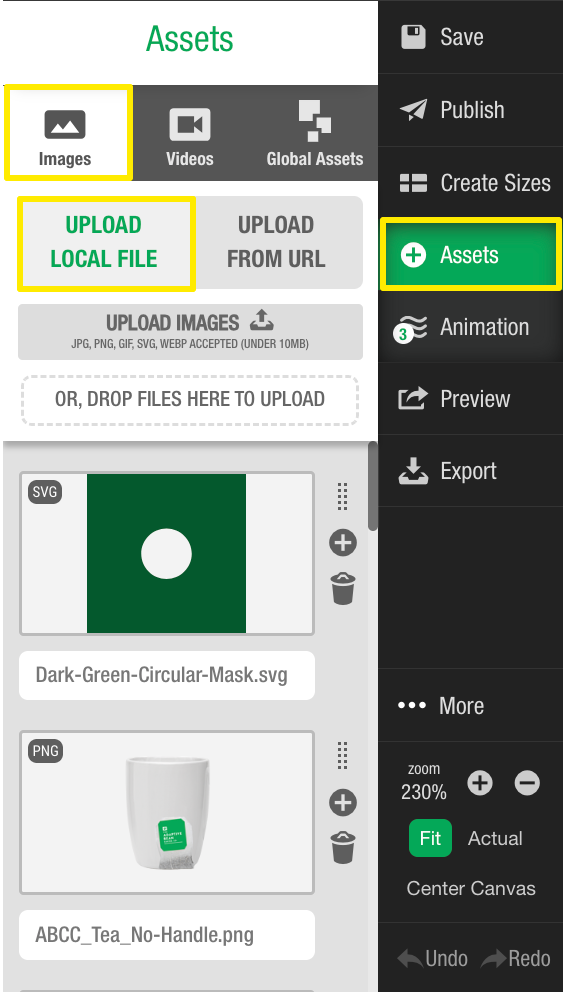
You can also upload files to your design by dragging and dropping them from your desktop folder onto the Assets panel or the canvas.
Upload from URL
1. Select the Upload from URL tab
2. Paste the URL into the Paste URL Here field
3. Click the arrow button to upload the image.
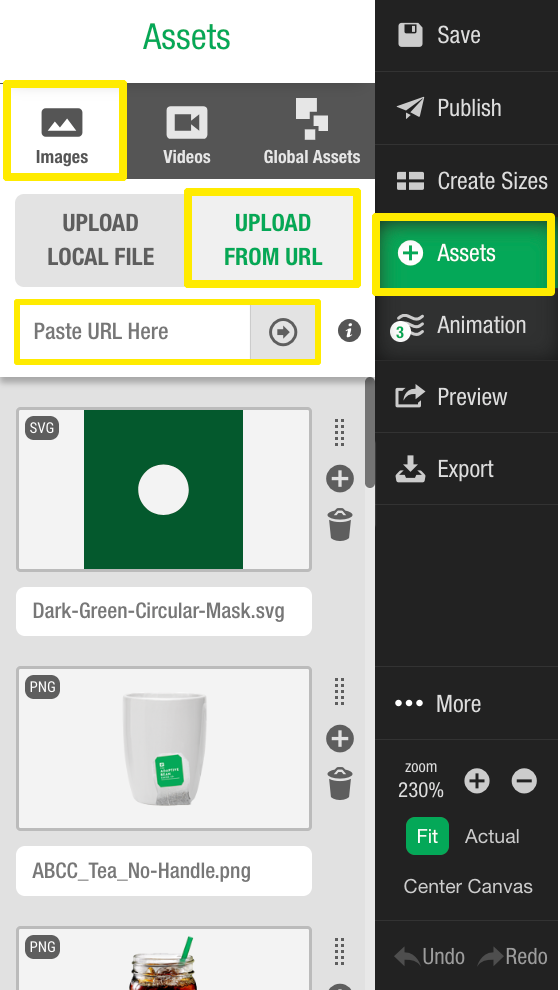
Note: Uploading an image via a URL is available under Enterprise subscriptions. Reach out to support@flexitive.com for more information.
Upload a Video
You can upload a video from a file or a URL. To upload the video, open the Assets Panel on the right side of the Editor and select the Videos tab.
Upload Local File
1. Select the Upload Local File tab
2. Select the Upload Videos button
3. Choose the video you'd like to upload to your design.
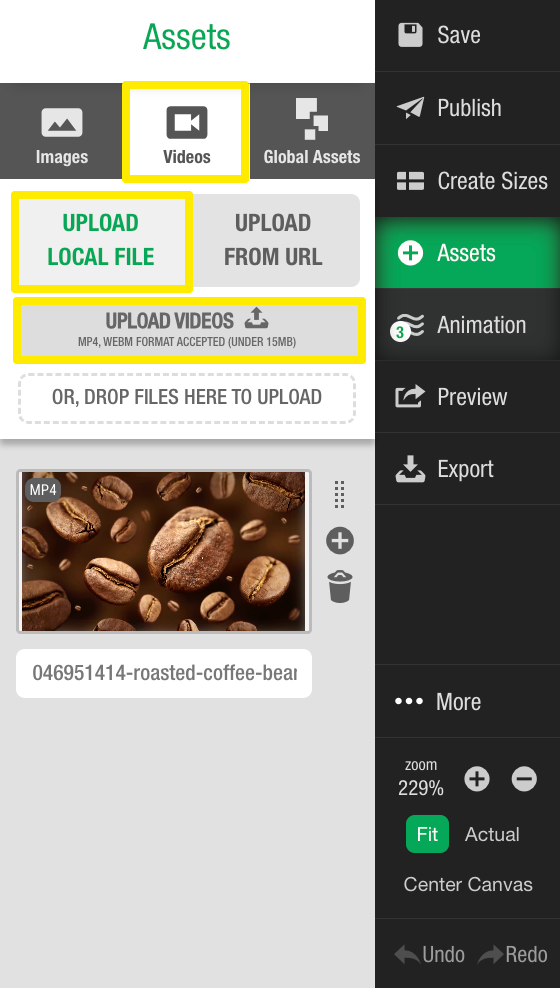
You can also upload files to your design by dragging and dropping them from your desktop folder onto the Assets panel or the canvas.
Upload from URL
1. Select the Upload From URL tab
2. Paste the URL into the Paste URL Here field
3. Click the arrow button to upload the video.
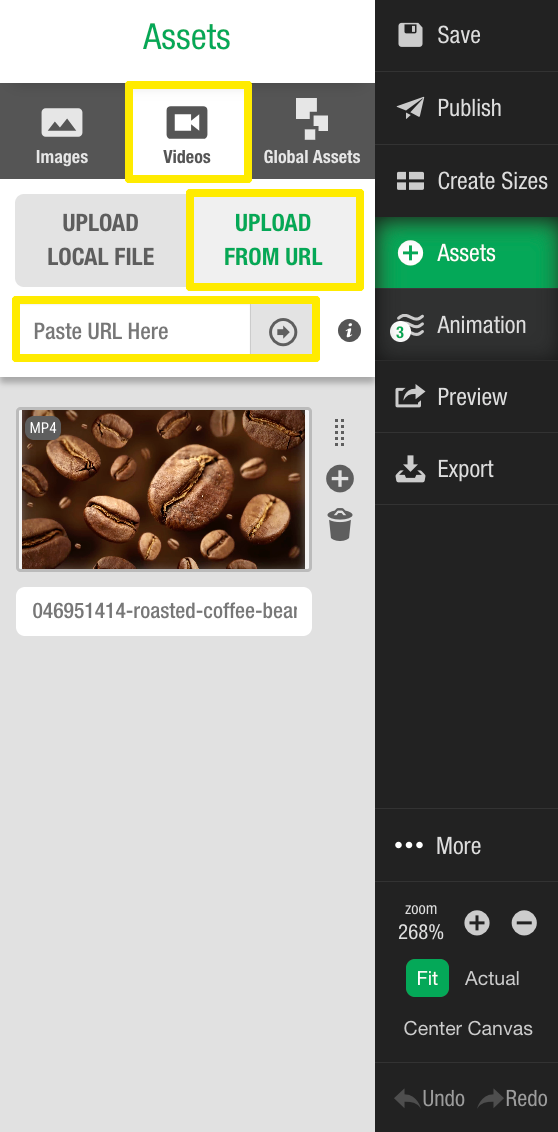
Note: Uploading a video via a URL is available under Enterprise subscriptions. Reach out to support@flexitive.com for more information.
Embed a Flexitive Design
Learn how to use a Flexitive design as an asset: Use a Flexitive Design as an Asset
Asset Guidelines
When uploading assets to Flexitive, we recommend uploading assets in the following formats:
| Format | Use Case | Example | More Info |
| SVG | Logos, text, icons, call-to-action buttons, etc. Even use Animated SVGs. |  | SVGs create high-quality, transparent images that scale to unlimited resolutions, but complex SVGs can result in large file sizes. |
| PNG | If you require image transparency and have real photos with lots of colors e.g Products, models, design elements, etc |  | Allows content to be overlaid on different backgrounds or elements, maintaining flexibility in layouts. However, transparency can increase file size. |
| WebP | For use with static images, with support for transparency and lossy or lossless compression. | 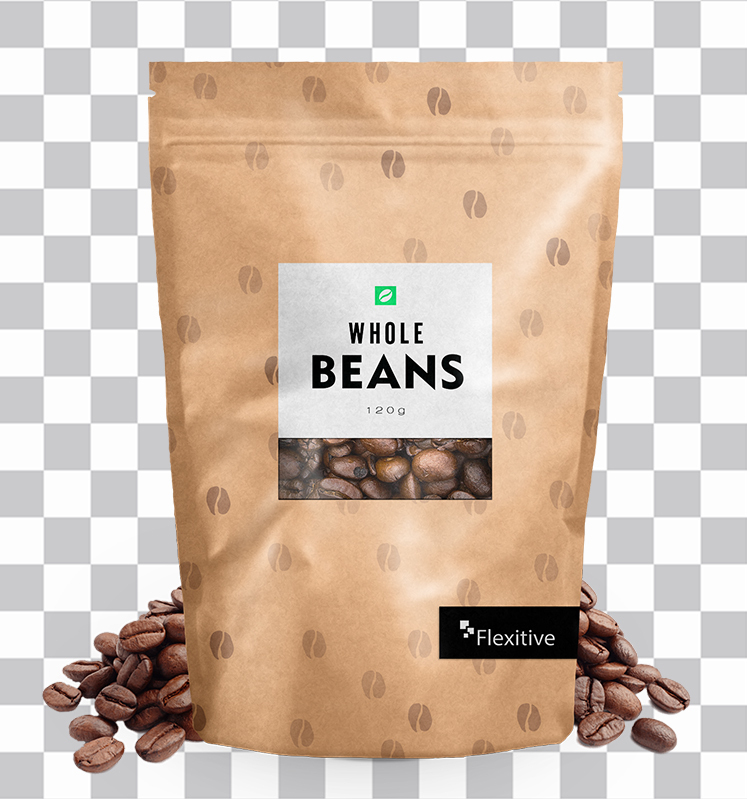 | Can produce smaller file sizes than PNG, JPG, or GIF. |
| JPG | Real photos with lots of colors, and that don’t require transparency. e.g Backgrounds etc. |  | JPGs are great for backgrounds or layers that will be behind other layers that use transparency (PNGs). |
| GIF | Static GIFs are best for images with solid colors, or short animated GIFs can be used, provided they have minimal frames. |  | Be careful with file size as GIFs can be large, especially if using transparency. Generally, try to avoid using GIFs in HTML5 designs. |
| MP4 | Best for very complex animation or real footage. Just like any Flexitive element, videos can be embedded as part of a Flexitive design or as a background. |  | If you are planning to use videos for display ad HTML5 exports, make sure that your ad server supports videos and check the serving costs. |
| WebM | For use with audio and video content. WebM videos allow for transparency. | Generally smaller file sizes than MP4 assets. Ensure the platform supports WebM videos. |
Reducing File Size
Flexitive uses smart compression to automatically resize PNG, WebP, and JPG images when you export a design. We recommend uploading the highest-resolution versions of these images to ensure quality.
Note: You can also adjust compression settings for PNG, WebP, and JPG images when exporting your design to control the final file size. Learn more about Adjusting Image Quality/Compression.
For SVGs, GIFs, and video files, we recommend uploading assets optimized for the size at which they will be displayed, as these formats are not automatically compressed. If you are still concerned about the final file size of your project, the best way to reduce the file size is to take a closer look at the images that you have uploaded for your project. Below are some tips on optimizing your image assets to have the lowest possible file size for your exported projects.
General Recommendations for Images
One of the most common causes of a larger file size is using transparency in the image. Sometimes using transparency is unavoidable, but it does significantly increase the file size of images and should be avoided where possible.
Some recommendations for how to limit your use of transparency are:
- Flatten the background: If assets don’t overlap or sit on a solid color, save the image with the background included instead of using transparency.
- Embed patterns: For repeating patterns (e.g., grass or textures) that won’t appear odd if repeated, include the pattern in the asset itself.
- Use a matte for transparency: If transparent areas must exist, consider adding a matte to reduce file size.
In addition to carefully considering transparency with images, it can be helpful to consider whether or not an image is required for an asset at all. In Flexitive, you can always use shapes or text to reduce file size.
SVG Images
SVG Images are the best option for uploading vector shapes, illustrations, and text, as they offer infinite scaling without loss of quality and are uncompressed when exported from Flexitive. Because SVGs aren’t compressed when exported from Flexitive, their file size remains the same on export, so it’s important to be aware of your file size limitations when using SVGs in your design.
PNG Images
PNG images are ideal for images that require transparency. PNGs are compressed less than JPG images when exported, and offer better compression than SVGs. However, PNGs typically result in larger file sizes than WebP, which can achieve smaller sizes while maintaining quality.
WebP Images
WebP images are a modern alternative to PNG and JPG formats, offering excellent compression while maintaining image quality. WebP supports both lossy compression (similar to JPG) and lossless compression (similar to PNG), and both options support transparency. Because of this, WebP files are often significantly smaller than comparable PNG, JPG, or GIF files, making them ideal for reducing overall design file size.
JPG Images
JPG images are oftentimes the best option for uploads in any scenario where you are not using a transparent image and will compress better than any other image format on export. Because of this, we generally recommend that this image format be used for any large images in your project, such as a background image, but we typically recommend against using a JPG for any images that require fine details, such as a company logo.
Wherever possible, it is recommended that you use a JPG image in Flexitive.
GIF Images
GIFs allow for animated image assets in Flexitive. However, GIFs are the largest image format in terms of file size and are not compressed on export. It is important to be aware of your file size limitations when using a GIF in your design. As an alternative, you could use an animated SVG, which often allows you to create animations at a smaller file size.