
If you've already created a design in Figma that you would like to upload to Flexitive to automate the remainder of the design creation process, you can do so by creating a "Figma/Flexitive" file, (or .FLXFIG) file using the "Flexitive File Export" Plugin to export your design. Then, you can use the .FIGFLX to upload all of the design assets and layout to Flexitive.
Exporting a .FIGFLX File
To export a design from Figma so you can upload it to Flexitive, you will need to use the "Flexitive File Export" Plugin. The plugin will allow you to create '.FIGFLX' files to then upload Flexitive,
Once you've added the Flexitive File Export Plugin to your Figma account, follow the steps below to export your design.
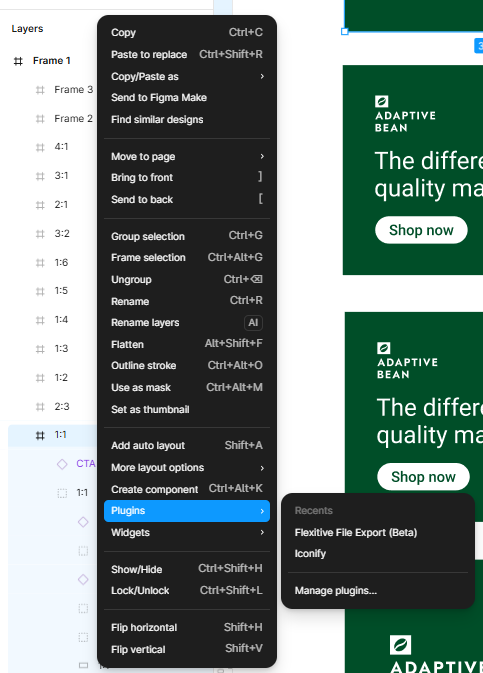
- In the Figma design, select the Frame you'd like to export for Flexitive, right click it, and then select "Flexitive File Export" under Plugins.
- You will see a modal appear to allow you to apply some basic settings to your export. Typically, we'd recommend using the default settings.
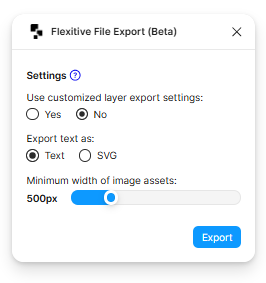
- "Use customized layer export settings" (default No) allows you to control if a layer is exported as a JPG, PNG, or SVG based on settings in the design.
- "Export text as" (default Text) lets you either export your text as a text element, or as an SVG image.
- "Minimum width of image assets" (default 500px) sets a minimum width value for any image asset included in the export.
- "Use customized layer export settings" (default No) allows you to control if a layer is exported as a JPG, PNG, or SVG based on settings in the design.
- Click "Export" to receive a '.FIGFLX' file.
Uploading a .FIGFLX File
To import your 'FIGFLX' file, drag and drop it onto a Flexitive canvas. After importing your 'FIGFLX' file into Flexitive, its layers will upload as assets in the Assets Panel and then will automatically be arranged on the canvas according to the Figma layout.
Once you've uploaded the .FIGFLX file, you'll be able to add animations to your design, scale it to additional sizes, and leverage other Flexitive automation features such as Automated Variations.